Inside the Terminal Code Loop: Primitives of File Editing, Context Windows, and Shell Execution Tracking
You open your terminal, type a command, and an AI assistant jumps into action. It reads your files, edits code, runs shell commands, and keeps track of everything it’s doing. But how does it actually work? What’s happening under the hood when tools like Claude Code, OpenCode, or DeepCode process your request?
In this tutorial, you’ll learn the core primitives that power terminal-based AI coding assistants. We’ll demystify file edits, shell command execution, multi-file reasoning, and context window tracking. By the end, you’ll understand exactly what happens when you ask an AI to “refactor that function and run the tests.”
No jargon left unexplained. No concept without a concrete example. Let’s open that black box.
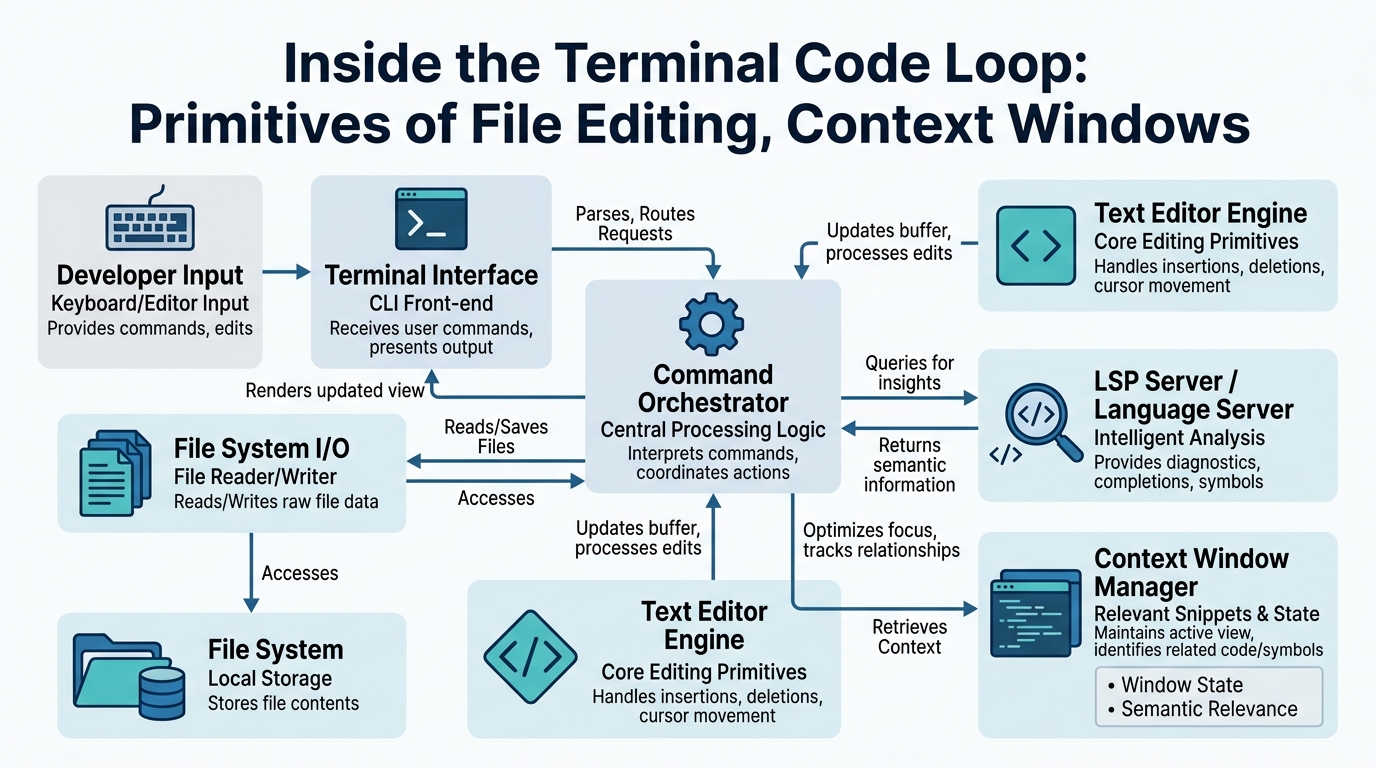
Claude Code, OpenCode, and DeepCode: The Terminal Trinity
Plain-English definition: These are AI coding assistants that live in your terminal. Instead of a chat interface in your browser, they work directly with your codebase, reading files and running commands right where you develop.
How they work: Each tool wraps a large language model (LLM) in a loop that reads your filesystem, takes actions on your behalf, and reports results. When you type “fix the bug in app.py”, the tool:
- Reads the current content of app.py
- Sends it to the AI model
- Gets back a plan (edit file X, run command Y)
- Executes those actions
- Shows you the result
Real-world analogy: Think of Claude Code as a remote developer who has SSH access to your machine. You give them instructions, they look at your code, make changes, and run tests — all while keeping you updated on their progress.
Concrete example (OpenCode):
# You type:
opencode "Add error handling to the database connection in db.py"

# Behind the scenes:
# 1. OpenCode reads db.py content
# 2. Sends to AI with system prompt about code editing
# 3. AI responds with edit operations
# 4. OpenCode applies changes to db.py
# 5. Returns: "✅ Added try/except block around connection"
The key insight most tutorials skip: these tools aren’t “chatbots with file access.” They’re action loops — read, think, act, repeat — where the AI decides both what to do and when it’s done.
File Edits: How AI Actually Changes Your Code
Plain-English definition: A structured instruction that tells the system exactly what text to replace in a file — not just “change this,” but precise location and content modifications.
How it works: The AI doesn’t directly write to files. Instead, it returns edit operations like “replace line 42-45 with this new block.” The tool validates these edits, checks they apply cleanly (no overlapping changes), and then writes them to disk.
Real-world analogy: You hand your editor a sticky note saying “on page 3, paragraph 2, replace ‘foo’ with ‘bar’.” The editor finds the exact spot, makes the change, and crosses it off your list. No ambiguity, no accidental edits elsewhere.
Annotated code example:
# This is what happens internally when an AI edits your file

def apply_file_edit(file_path: str, edit: dict) -> bool:
    """Apply a structured edit to a file.

    The AI returns an edit like:
    {
        "old_string": "def get_user(id):",
        "new_string": "def get_user(user_id):",
        "operation": "replace"
    }
    """
    with open(file_path, 'r') as f:
        content = f.read()

    # Find exact match (no fuzzy matching — must be precise)
    if edit['old_string'] not in content:
        return False  # Edit failed — AI hallucinated wrong content

    # Replace exactly once
    new_content = content.replace(
        edit['old_string'],
        edit['new_string'],
        1  # Only first occurrence
    )

    # Write back to disk atomically
    with open(file_path, 'w') as f:
        f.write(new_content)

    return True
Non-obvious insight: Edit operations are tracked in a stack. If you undo one edit, the tool must replay all subsequent edits. This is why concurrent file edits are dangerous — two edits to the same line conflict, and the tool must decide which wins.
Shell Command Execution: Running Code Without Leaving the Terminal
Plain-English definition: The ability for the AI assistant to run any terminal command you could — compilation, testing, git operations, even deployments — and see the results.
How it works: The AI returns a command like npm test or python manage.py migrate. The tool opens a subprocess, runs the command with your environment variables and permissions, captures stdout/stderr, and sends the output back to the AI for analysis.
Real-world analogy: Like having an intern who can run any command you’d type, but they always tell you exactly what they ran and whether it succeeded or failed.
Annotated example (shell execution flow):
# AI wants to run tests after editing
# Tool executes:
cd /home/user/project && npm test 2>&1

# Captures output:
# > app@1.0.0 test
# > jest
#
# PASS src/__tests__/api.test.js
# FAIL src/__tests__/db.test.js
#   ● Database connection › returns error on failure
#
#     expect(received).rejects.toThrow()
#
#     Received promise resolved instead of rejected

# Tool sends this output to AI for next decision
Gotcha most tutorials miss: The shell execution times out by default (usually 30-120 seconds). Long-running commands like npm install or database migrations can fail silently. The AI doesn’t know the difference between “command completed” and “command timed out” unless the tool tells it.
Multi-File Reasoning: Seeing the Whole Picture
Plain-English definition: The AI’s ability to read and understand multiple files simultaneously, not just one isolated file.
How it works: The tool tracks which files the AI has read and can present multiple files in a single context. When the AI proposes an edit to one file, it can reference changes in another file — “update the import in main.py to match the new function signature in utils.py.”
Real-world analogy: A mechanic who looks at both the engine and the transmission simultaneously, understanding how a change in one affects the other.
Concrete example (OpenCode multi-file strategy):
# You ask: "Add a user registration endpoint"
# The AI reads:
# - routes/auth.py (existing endpoints)
# - models/user.py (database schema)
# - tests/test_auth.py (test patterns)
# - requirements.txt (dependency versions)

# AI might respond with edits to 3 files:
# 1. models/user.py: Add UserRegistration schema
# 2. routes/auth.py: Add /register endpoint
# 3. tests/test_auth.py: Add test cases
Non-obvious insight: Multi-file reasoning is constrained by context window size. A large codebase might have 10 files with 1000 lines each — that’s 10,000+ tokens just from file contents. Tools use strategies like “only read files the AI explicitly asks for” to conserve context.
Context Window Tracking: The AI’s Short-Term Memory
Plain-English definition: The maximum amount of text (tokens) the AI can “see” at once — including previous conversation history, file contents, and recent command outputs.
How it works: The tool monitors how many tokens each message uses. It tracks: system prompt (instructions), conversation history (your prompts + AI responses), file contents (read files), and command outputs (shell results). When approaching the limit, it must trim or summarize older content.
Real-world analogy: A whiteboard that can only hold so much writing. Once it’s full, you must erase old stuff to write new stuff. If you erase something important, the AI forgets it exists.
Annotated example (token tracking):
# Pseudocode showing how tools track context window usage

class ContextWindow:
    def __init__(self, max_tokens: int = 128000):
        self.max_tokens = max_tokens
        self.messages = []
        self.file_cache = {}  # filename -> (content, tokens)

    def add_message(self, role: str, content: str):
        tokens = count_tokens(content)

        # Check if adding this would overflow
        while self.current_tokens() + tokens > self.max_tokens:
            # Remove oldest messages (strategy: delete messages, keep system prompt)
            oldest = self.messages.pop(0)
            if oldest['role'] != 'system':  # Never remove system prompt
                break

        self.messages.append({"role": role, "content": content})

    def current_tokens(self):
        return sum(count_tokens(m['content']) for m in self.messages)
Gotcha: When tools report “context window at 80%,” they mean your usage, not the model’s limit. If the model limits at 128K tokens and you’re at 100K, the tool must start trimming. This is why long conversations degrade in quality — the AI literally can’t remember what you said 50 prompts ago.
Comparison: How These Primitives Connect
| Concept | What It Does | Key Constraint | Analogy |
|---|---|---|---|
| Claude Code | Terminal AI assistant with edit+shell loop | Requires trust for shell execution | Remote developer with SSH |
| OpenCode | Minimalist terminal AI with file awareness | Single-file focus by default | Focused programmer |
| DeepCode | Multi-file analysis with edit precision | Context window fills fast | Code reviewer with photographic memory |
| File Edits | Precise text replacement in files | Must match exact content | Sticky notes on a manuscript |
| Shell Execution | Runs commands, captures output | Timeout limits long operations | Intern running experiments |
| Multi-File Reasoning | Reads multiple files simultaneously | Context window constrained | Mechanic with multiple diagnostics |
| Context Window Tracking | Monitors token usage for trimming | Old content gets lost | Whiteboard with limited space |
Key Takeaways
- Claude Code, OpenCode, DeepCode are action loops — read files, plan edits, execute, repeat
- File edits are structured replacements, not free-form changes — precision matters
- Shell execution runs commands in your environment, with timeouts and permissions
- Multi-file reasoning lets AI see cross-file impacts but eats context quickly
- Context window tracking manages the AI’s memory — old conversations get trimmed
- Every tool implements these primitives slightly differently, but the core loop is identical
- When your AI assistant “forgets” something, it’s not broken — its context window just ran out of space
Now you know exactly what happens inside that terminal loop. Next time you ask your AI to “fix everything,” you’ll understand why it reads three files at once, why it runs tests after editing, and why it sometimes asks you to repeat yourself.

Comments